Signing in to Teams
Where to log in, what to do if you were invited, and how to reset your password.
Your hospital admin issues your TachyDx Teams credentials. You sign in through the Teams Console — a separate entry point from the public research portal.
If you already have credentials
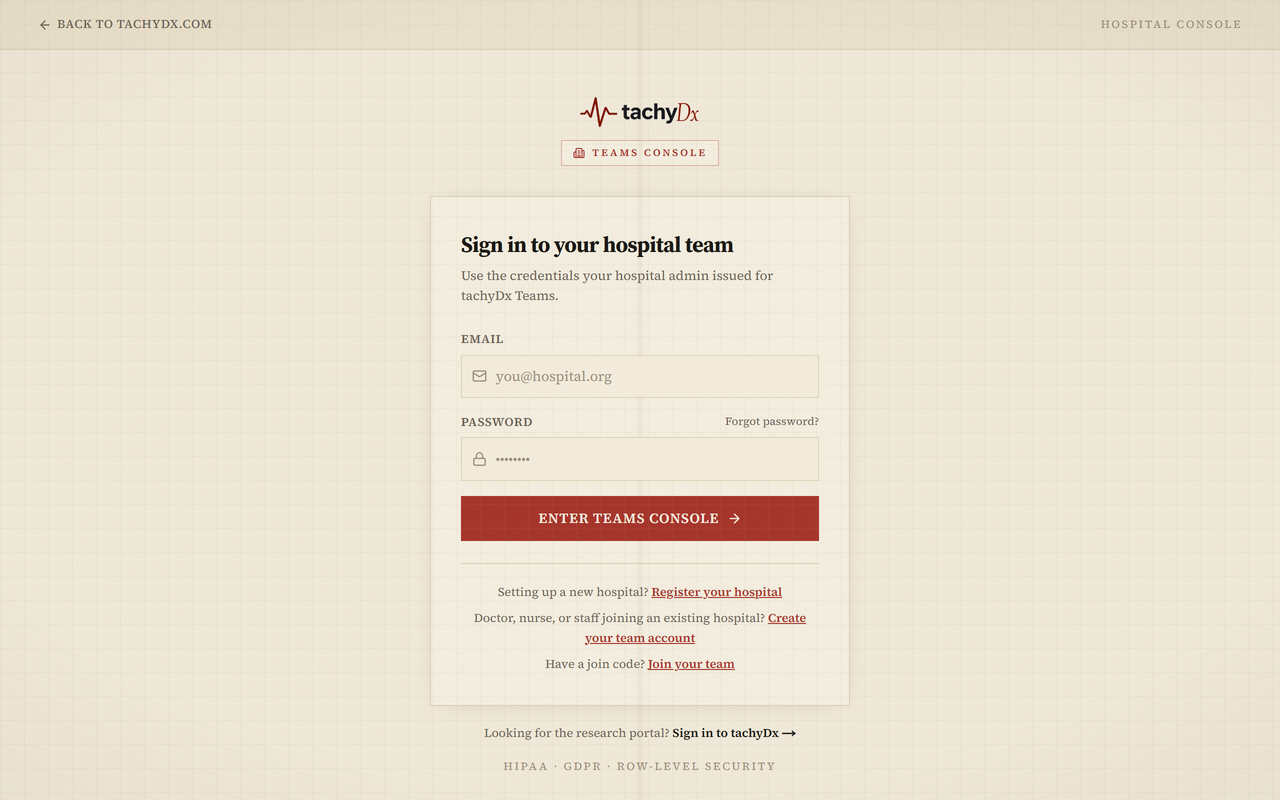
- 1Go to the Teams login page (the header reads Hospital Console).
- 2Enter the Email and Password your hospital admin gave you.
- 3Select Enter Teams Console.
- 4You land straight in your hospital's workspace. If you administer a team but haven't opened one yet, you land on the Teams home page.
Forgot your password?
Select Forgot password? on the login screen and follow the email link to reset it.
If you were invited by email or code
There are two ways staff join an existing hospital:
- Email invite — open the invitation email and follow the link. It lands on a Workspace Invitation page showing the hospital and your role. Create your account inline (or sign in if you already have one) and select Accept. Invite links are single-use and expire seven days after they're sent.
- Join code — if your admin shared a short code, go to Join your team, enter the Invite code and the email the invite was sent to, and select Continue.
Heads up
Accept an invite with the same email address it was sent to. If you're signed in as a different account, the page shows a mismatch warning and asks you to sign out first.
Registering as a clinician
If you're a doctor, nurse, pharmacist, or clerk joining an existing hospital and weren't sent a link yet, use Create your team account. You'll create your account, confirm your email, then enter the join code your admin shares. Your actual role is assigned by your admin — the specialty you pick during signup is just your clinical specialty.