Hospital admin & owner · 3 min read
Departments and wards
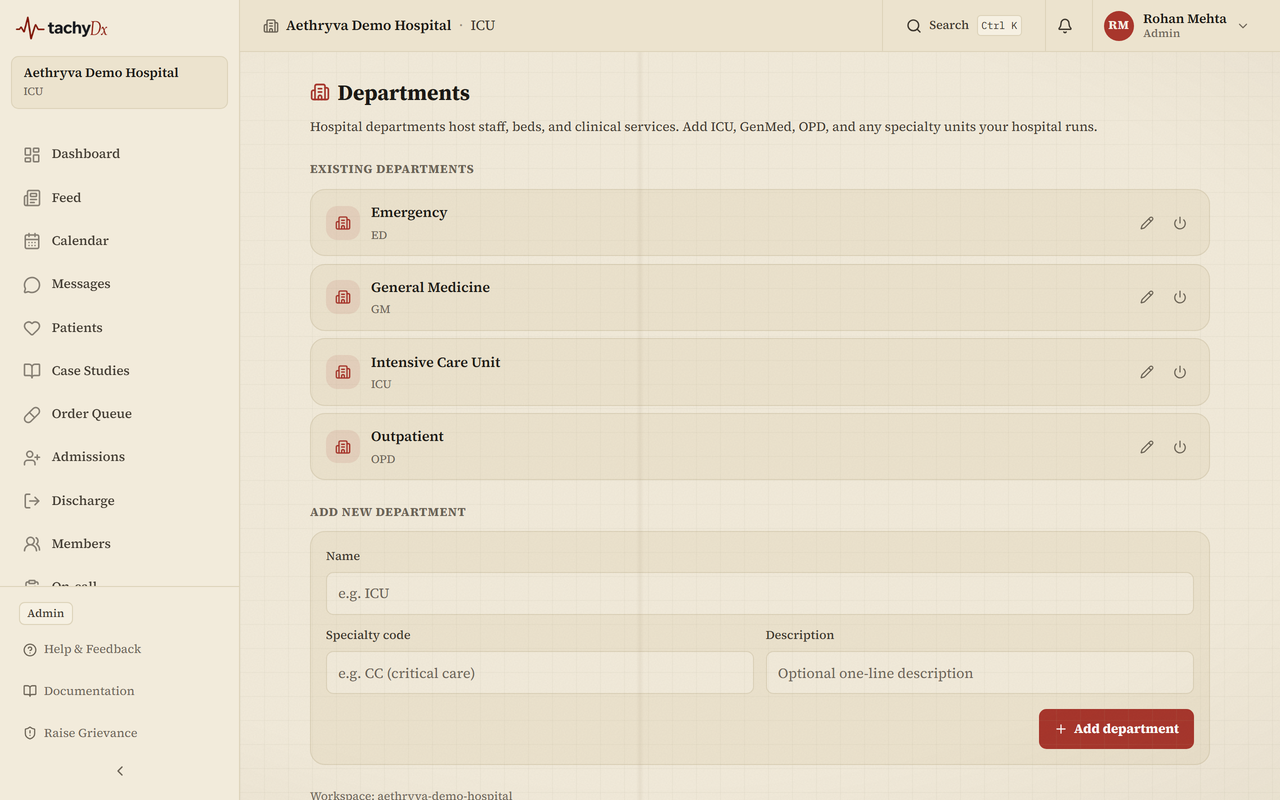
Add the departments your hospital runs and configure ward beds so the bed map and occupancy work.
Departments and wards are admin/owner-only setup. Departments organise your staff and beds; wards define bed capacity that feeds the bed map and occupancy stats.
Add departments
- 1In the sidebar, open Departments.
- 2Under Add new department, enter a Name (e.g. ICU), an optional Specialty code (e.g. CC for critical care), and an optional Description.
- 3Select Add department. It appears under Existing departments.
- 4To change one later, use the inline rename (pencil) control. Departments aren't deleted — use activate / deactivate instead; deactivated ones are marked Inactive.
Configure beds and wards
- 1In the sidebar, open Beds & Wards.
- 2Add each ward with a name, a type, and a bed capacity. Ward types include general, ICU, HDU, pediatric, obstetric, psychiatric, surgical, emergency, isolation, transplant, recovery, observation, and custom.
- 3If you choose custom, add a custom type label.
- 4Save the ward. Like departments, wards are deactivated rather than deleted.
Note
Bed capacity drives the Bed occupancy stat on your dashboard. Until a ward has capacity set, that stat shows “set ward capacity” and links back here.