Hospital admin & owner · 4 min read
Register and set up your hospital
Create your hospital workspace, start the free trial, and share your join code.
As the founding admin, you register your hospital, get a workspace on a free trial, and receive a join code to bring your staff on board.
Register your hospital
- 1Go to Register your hospital from the Teams login page.
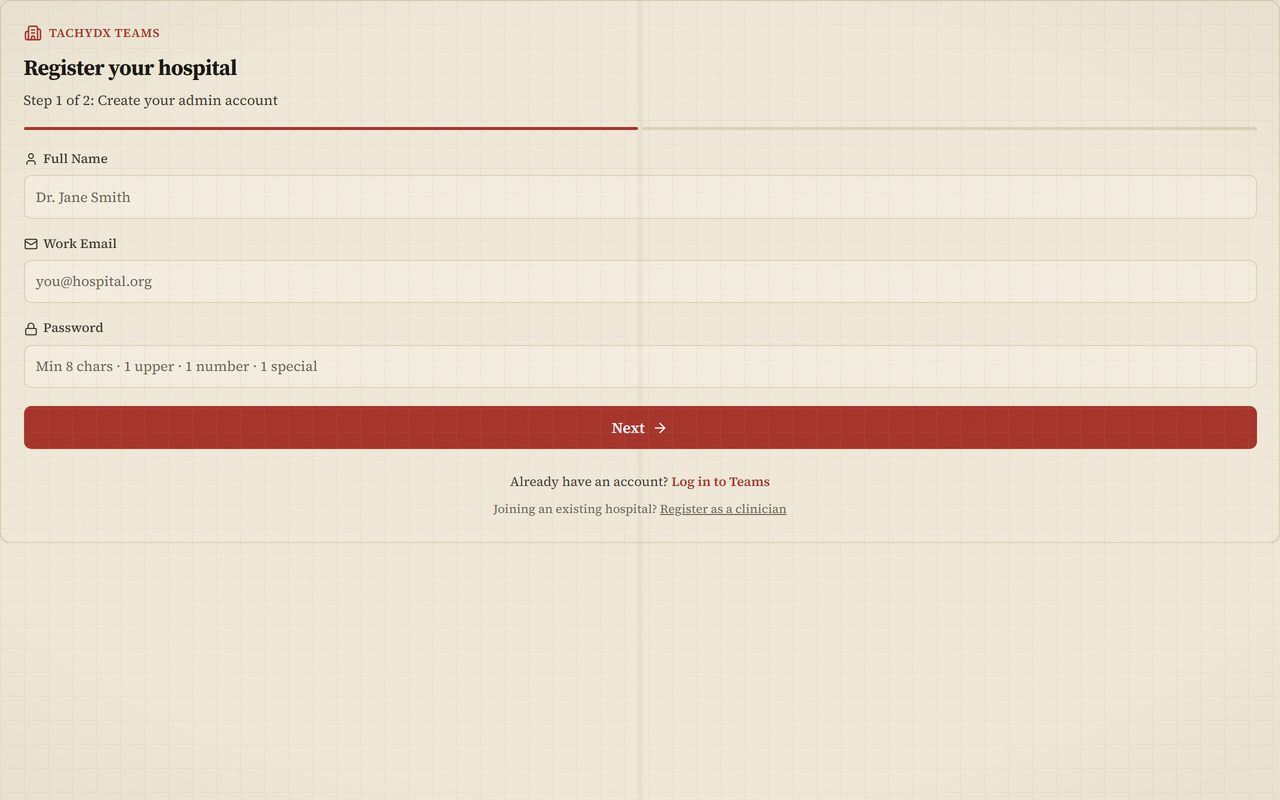
- 2Step 1 — Create your admin account: enter your Full Name, Work Email, and a Password (the strength meter asks for 8+ characters, an uppercase letter, a number, and a special character). Select Next.
- 3Step 2 — Hospital details: enter your Hospital / Institution Name, Type (Government, Private, University / Teaching, Clinic, Research Institute, or Other), Bed Strength, Accreditation (NABH, JCI, etc.), Country, optional Website, and Contact Phone. Complete the CAPTCHA.
- 4Select Submit registration, then confirm your email from the message we send.
Create your workspace
- 1After confirming your email, go to Create Your Team.
- 2Enter your Hospital / Institution Name and a Workspace Name (most hospitals use one workspace for everything; departments and wards come later).
- 3Select Start Free Trial. The trial runs 30 days and includes up to 50 staff seats.
- 4On the success screen, copy Your Join Code — you'll share this with staff — then select Go to Workspace.
Finish setup from the dashboard
Your admin dashboard shows a row of dismissible setup prompts. They're guidance, not a blocking wizard — each one clears itself once you've done it. The suggested order is:
- Add your first department (ICU, GenMed, OPD — staff and beds attach to departments).
- Configure beds and wards so the bed map and occupancy load.
- Bulk import staff from a roster file, or send your join code.
- Set hospital identity (logo, address, contact) in Settings.
- Configure on-call rotation so pages route correctly.
Tip
Next: Departments and wards, then Add staff to your hospital.